Short version
Put your video in a folder, open Claude Code on it, and send one setup prompt: it cuts the pauses, writes captions timed to every word, and cuts you out of the background. Then ask for effects by naming the word they should land on, one at a time or several in one message. Finish by asking Claude to check its own work like an editor. You need a Claude Pro plan, a few hours of Claude's time for a full reel, and no editing skills.
Editing a video is now a conversation
You film yourself on your phone. Normally the next part is the hard one: cutting out the pauses, adding captions, making a title pop. Either you learn an editing program or you pay someone who has.
Claude Code changes that. You tell it what you want, and on which word: "make the screen shatter when I say shatter". It writes the edit as code, renders the video, looks at the frames and hands you back a finished file. You never touch a timeline.
The idea isn't ours. Brain AI by Eden Bibas published a Hebrew guide on 1 October 2026 with a reel that, in their words, nobody edited. We liked it enough to rebuild it for our community in English: the same seventeen kinds of effect, our own prompts, a different engine, and every prompt run before printing.
The reel at the top of this page was made exactly this way. It started as 71.5 seconds of footage with long, awkward pauses. Six messages to Claude later, it was a 41-second reel with captions on every word, sixteen visual effects and a sound for each.
What you need before you start
- A Claude Pro plan or higher. Pro is $20 a month billed monthly, or $17 a month billed annually (checked 1 October 2026). Claude Code is included in every paid plan and shares its usage limit with ordinary chat. The free plan doesn't include it.
- The Claude desktop app, for Mac or Windows, from claude.com/download. It has a Code tab where Claude works on the files in a folder on your computer.
- Claude Opus 5.5 as the model. It's already the default in Claude Code on Pro, Max, Team and Enterprise. To check, type
/statusin the message box; to change it, type/model(command list). We tested every prompt on this page on Opus 5.5 only. - A video of yourself talking. Anything from your phone works. A steady camera and a plain background give the cleanest cut-out of you, which matters for the effects that move you around.
- Time. Our six messages kept Claude busy for about 3 hours 15 minutes in total: 51 minutes for setup, 64 for sixteen visual effects in three batches, 45 for sound and 37 for the final check. A reel with two or three effects takes a fraction of that. You can leave it running.
One licence question if you use this at work. The engine we use, Remotion, is free for individuals, non-profits and companies of up to 3 people. Companies of 4 or more need a paid Company License, from $25 per seat per month (checked 1 October 2026). If you edit for an employer of that size, ask whoever owns software purchasing before you publish anything made this way.
How to ask for an edit: four questions
You don't need any editing vocabulary. A good request answers four plain questions:
- What happens? Describe what you want to see. "The screen breaks like glass."
- When? On which word, or at which second. "On the word shatter."
- How does it feel? Fast, dramatic, gentle, funny, cinematic.
- How does it sound? A sound effect, silence, or music getting louder.
Claude fills in the rest: exact frame timing, how the motion speeds up and slows down, colours, sound levels. If something isn't right, say so the way you would to a human editor. There's an example of that below.
Step 1: Install Claude Code and make a project folder
- Download the Claude desktop app from claude.com/download, install it and sign in.
- Open the Code tab.
- Make a new, empty folder on your computer, for example
my-video, and put your video in it. Name itraw.mp4, or change the name in the prompt below. - If you want the "other worlds" effect, put the background pictures in the same folder: we named ours
world-space.jpg,world-underwater.jpgandworld-future.jpg. Ours are free photos from Pexels, whose licence allows editing with no credit required. - In the Code tab, choose that folder as the project folder.
You won't type any commands yourself. When Claude needs to install something, it asks first; you approve.
Step 2: The base prompt that builds the editing engine
The first message sets everything up: the project, a transcript with a time for every word, a first cut without the pauses, captions, and a cut-out of you in every frame that later effects reuse.
Remotion is a tool that builds video from code. Instead of dragging clips on a timeline, every frame is described in code, so Claude can place anything to the exact frame, and you can watch the edit in your browser while it works. Remotion publishes its own instructions for AI assistants, called Agent Skills, and the prompt tells Claude to install them.
I want to edit the video raw.mp4 in this folder, and I want you to do it with Remotion. I don't write code, so do all the technical work yourself and tell me what you are doing in one plain sentence per step. Install whatever you need, and say in one sentence what you installed and why.

1. Set up a Remotion project in this folder for a vertical video: 1080×1920, 30 frames per second. Add Remotion's official Agent Skills (npx skills add remotion-dev/skills) and follow them.
2. Transcribe raw.mp4 on this computer with Whisper.cpp (Remotion's @remotion/install-whisper-cpp), with a start and end time for every word. Save it as words.json and show me a table: word, start, end. I will use it to tell you where each effect goes.
3. First cut: remove every pause longer than 0.4 seconds, but keep a short breath around each sentence so nothing sounds clipped. Keep picture and sound in sync. Keep the word table valid after the cut.
4. Captions: two to four words at a time, big and bold, centred in the lower third, with the word being spoken highlighted in yellow. Use a clean, bold sans-serif font.
5. Prepare a cut-out of the person in every frame, once, and save it, so later effects can put things behind the person or take them out of the frame. Use a tool whose licence allows commercial use, such as rembg with the u2net_human_seg model.
6. Render the result as cut-v1.mp4 and tell me how to open Remotion Studio to watch it.

From now on, when I ask for an effect on a word, look the word up in the table, put the effect on that word, keep every earlier effect, and render the next numbered version.
What you get back: cut-v1.mp4, your video without the pauses and with captions, plus a numbered table of every word and its time. An excerpt from ours:
| # | Word | Start (s) | End (s) |
|---|---|---|---|
| 15 | title? | 4.27 | 4.66 |
| 20 | shatter? | 5.73 | 6.17 |
| 23 | step | 6.71 | 6.91 |
| 33 | flip | 8.97 | 9.19 |
| 45 | stop | 14.37 | 14.61 |
| 50 | giant. | 15.81 | 16.38 |
That table is your map. When you want an effect, you name the word, or its number if the word appears more than once.
In our run, Claude installed Remotion, the Agent Skills, Whisper.cpp with its large-v3-turbo model, rembg for the cut-out, and a caption font. The transcription runs on your own computer, with no upload. Cutting the person out of all 2,143 frames was a large part of the 51 minutes. Why 0.4 seconds: shorter gaps sound like natural breathing; longer ones are the "um, where was I" moments that make a phone video feel slow.
Step 3: Seventeen effects, one prompt each
Each prompt stands on its own. Send one at a time, or paste several into one message as we did: "Here are six effects. Do them all, in this order". We sent sixteen visual effects in three messages, then the sound in a fourth. Change the word in quotes to a word from your own table. Every picture below is a frame from our finished reel, made by the prompt next to it.
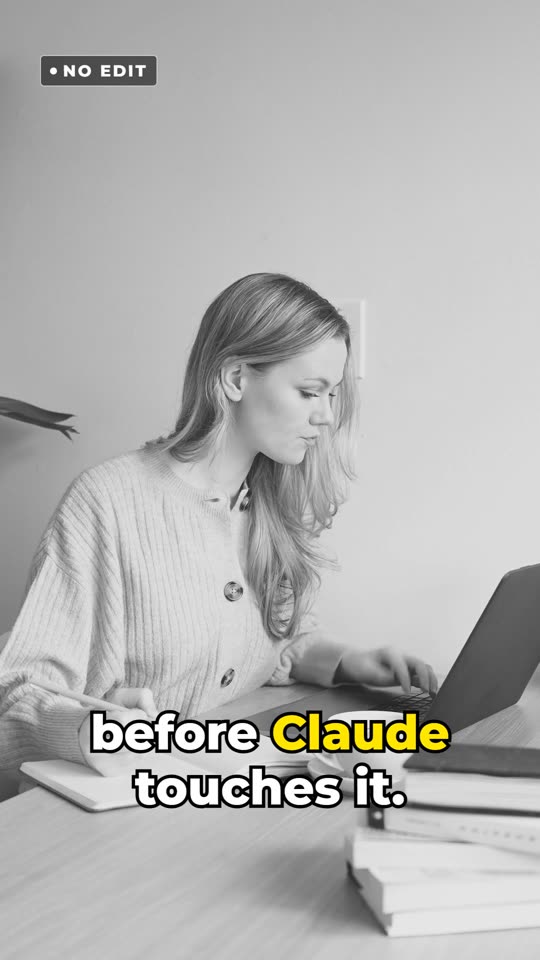
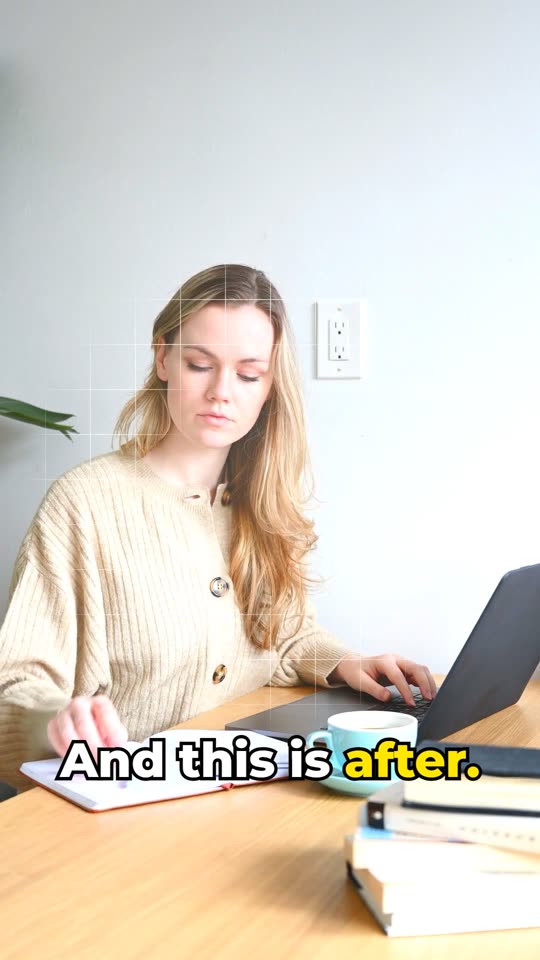
1. Grey until one word, then colour
 Before
 On "after"
Until the word "after", make the video look raw and unedited: black and white, a little flat, with a small "NO EDIT" tag in a corner. On "after", hit it: the colour floods back in a single frame, a soft glow and a thin grid pulse across the screen, and the tag disappears.
2. A 3D title that flies in

On the word "title", make a big 3D title that says YOUR TITLE fly out of the depth of the screen toward the camera, land in the upper third with a small bounce and a short camera shake, hold for one second, then fly off. Give the letters real depth, like thick extruded letters, with a soft shadow. Keep the captions readable underneath it.
3. The screen shatters
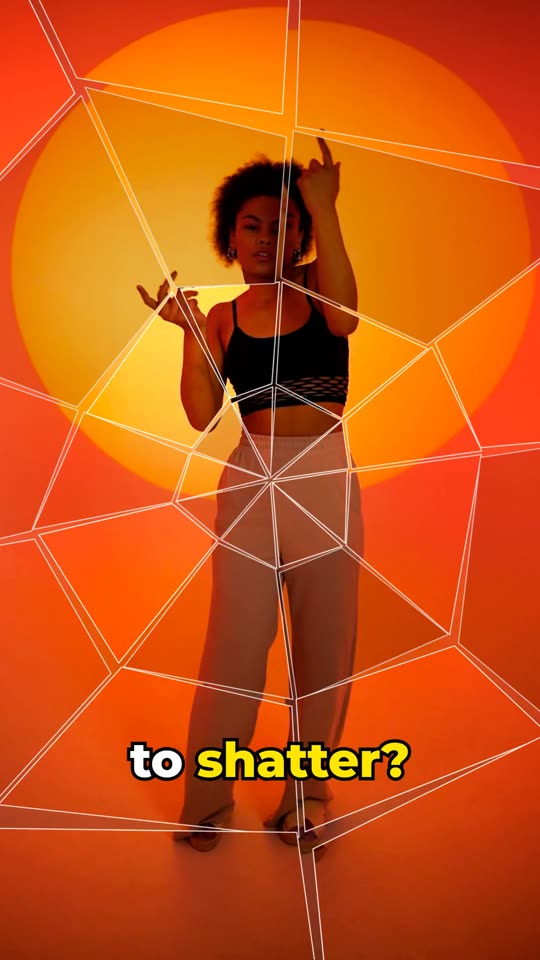
On the word "shatter", crack the whole screen like glass from the centre, then burst it into 30 to 40 sharp shards that fly toward the camera and spin away, revealing the video behind them. The shards must carry the picture, not plain grey. The whole effect takes less than one second.
4. Stepping out of the frame
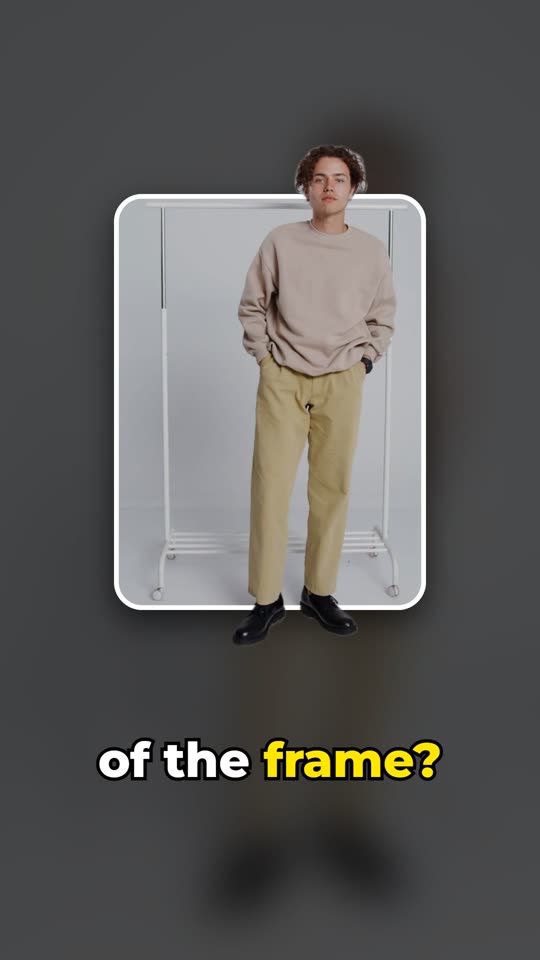
From the word "step" to the end of that sentence, shrink the video into a rounded frame in the middle of the screen, with a dark, blurred copy of the video filling the space around it. Then let the person step out of the frame: draw the person's cut-out on top of the frame's border, so their body comes out in front of it while their background stays inside.
5. The whole video flips over
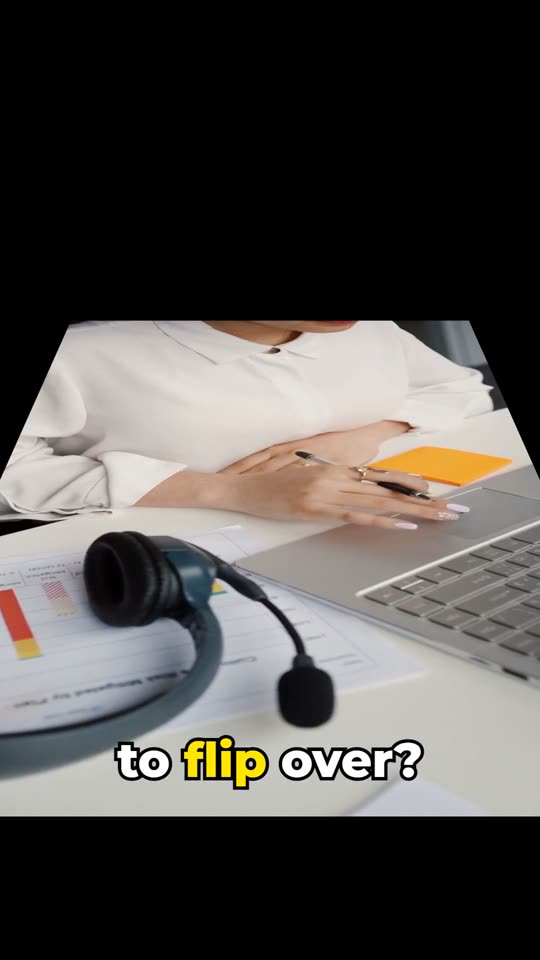
On the word "flip", turn the whole video over in 3D around its middle, like a card turning, hold it upside down for half a second, then flip it back the right way up. The sound keeps playing normally.
6. Blackout, then other worlds
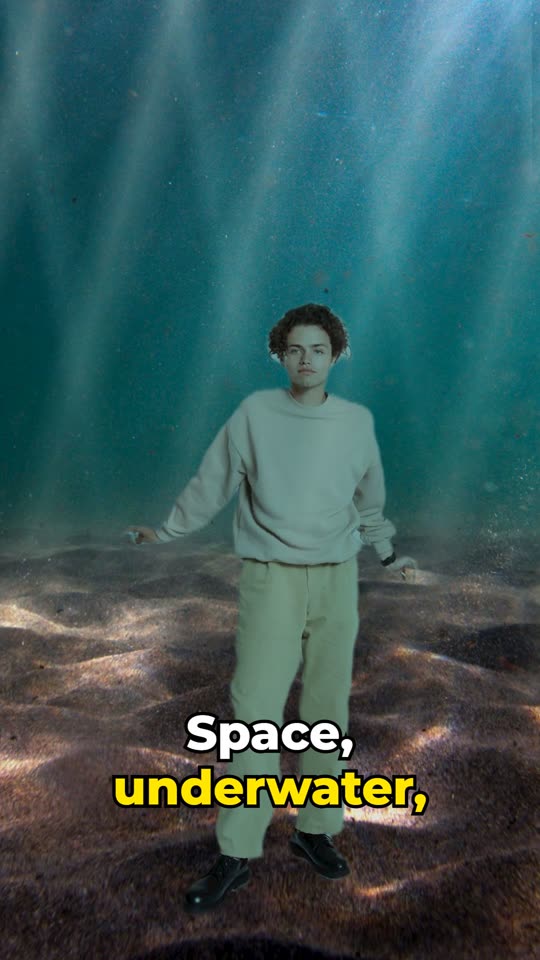
On the word "else", cut to black for half a second. Then, using the cut-out, put the person in front of world-space.jpg on "Space", world-underwater.jpg on "water", and world-future.jpg on "future", each change with a quick flash. Keep their feet near the bottom of the picture, shift their colours slightly toward each world, and give the underwater world a gentle wobble with drifting light.
7. Freezing time
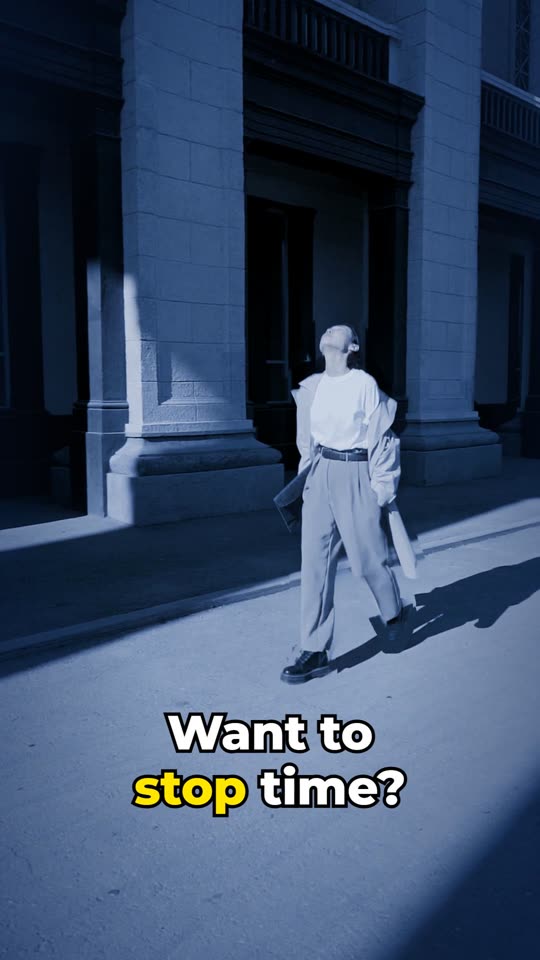
On the word "stop", freeze the picture for 1.5 seconds. During the freeze, turn the colours cool and blue, push the camera in slowly, and move the person's cut-out and the background a little in opposite directions so the frozen moment feels 3D. Then time restarts and the video carries on from where it froze.
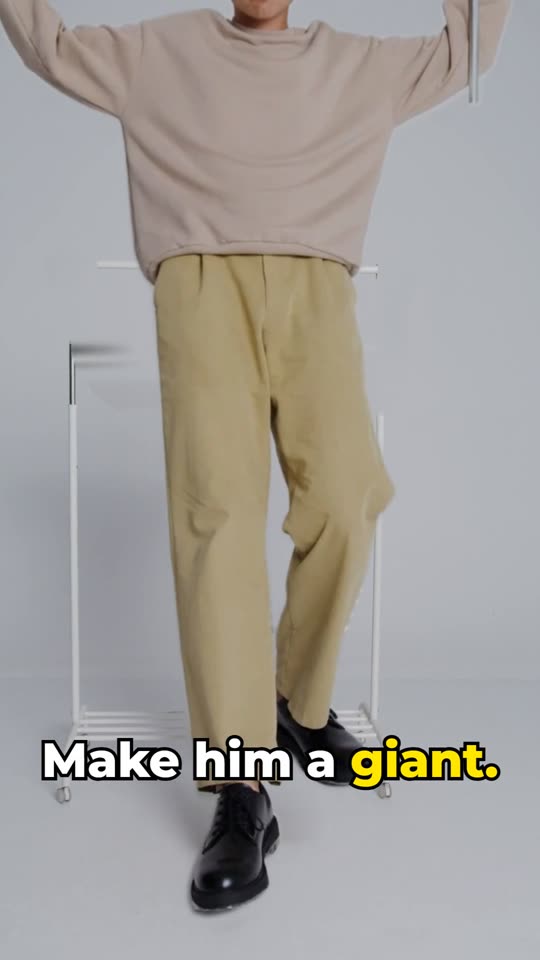
8. Turning into a giant
 First step
 Third step
On the word "giant", make the person grow in three heavy steps: 1.2 times, then 1.6 times, then 2.2 times their size, anchored at their feet, so their head rises out of the top of the picture. Shake the camera hard on each step, like giant footsteps.
9. Breaking into pixels
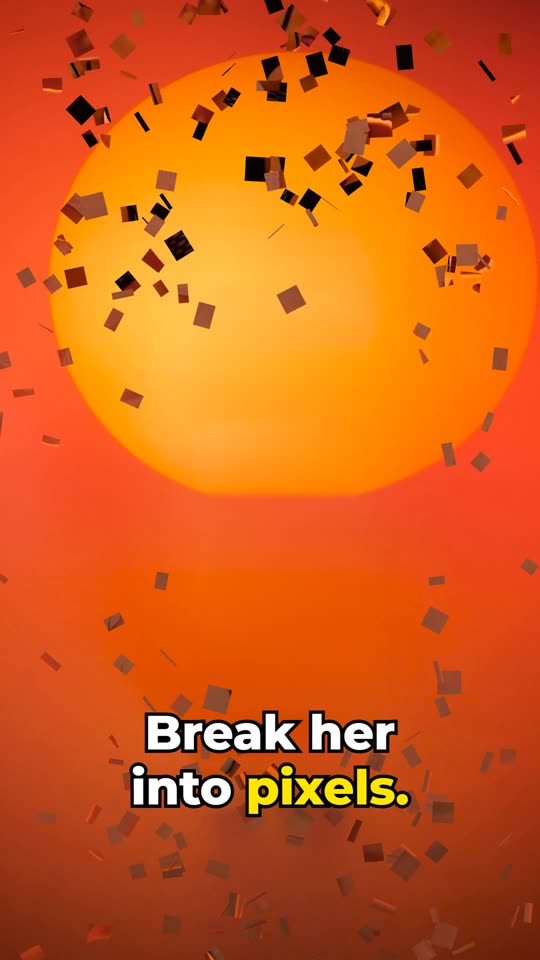
On the word "pixels", break the person apart into small square blocks that fly outward and spin, leaving the empty background behind, then pull the blocks back together into the person within one second.
10. An endless zoom into the screen
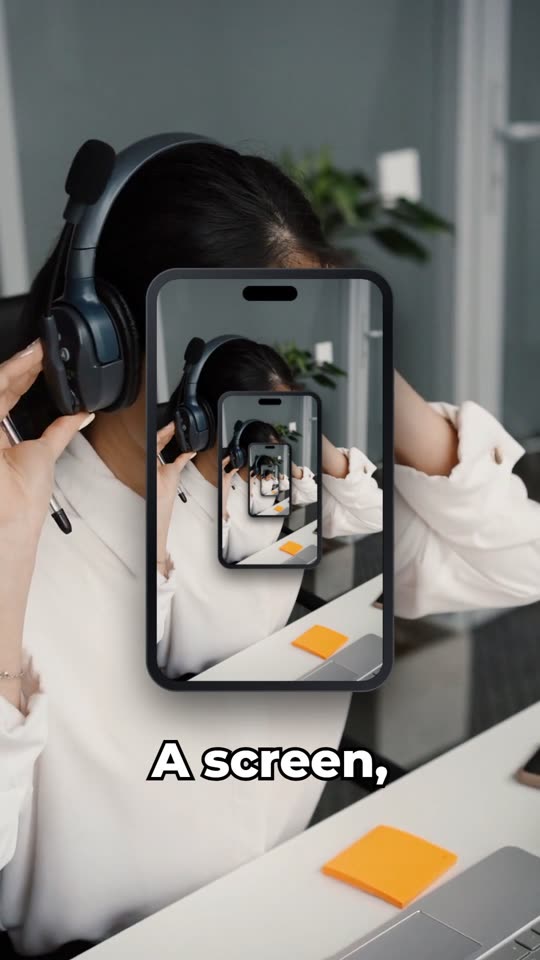
On "a screen, inside a screen", show a phone in the middle of the picture playing this very video, then dive the camera into the phone's screen, three times in a row, each time landing on a smaller copy of the same scene.
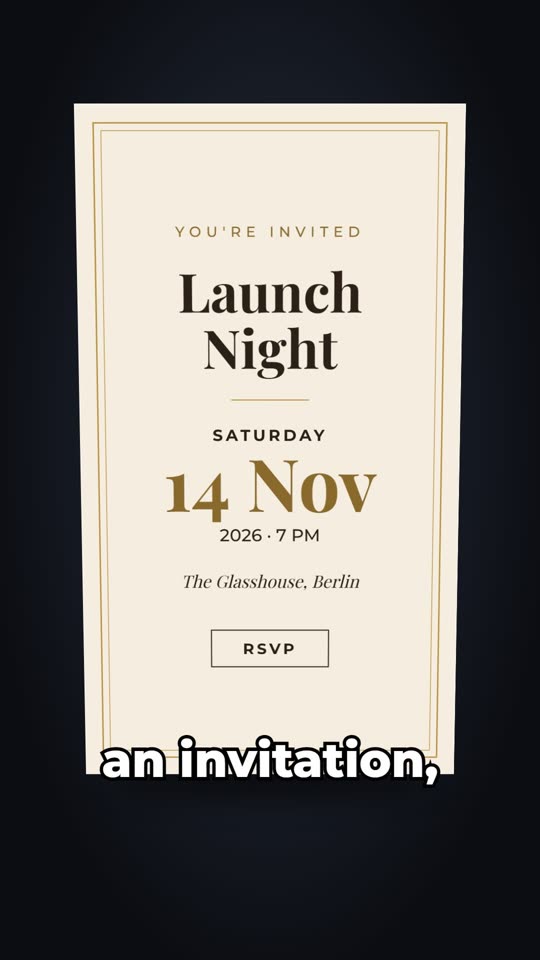
11. A cube with four uses
 On "ad"
 On "invitation"
On "One video", turn the frame into a cube that turns one face further on each of the words "ad", "reel", "invitation" and "slide". Each face shows a card for one use: an ad with a price tag, a social reel with a like button, an event invitation with a date, and a presentation slide with a chart. Keep the captions on top.
12. Money stamps and a price that falls to zero

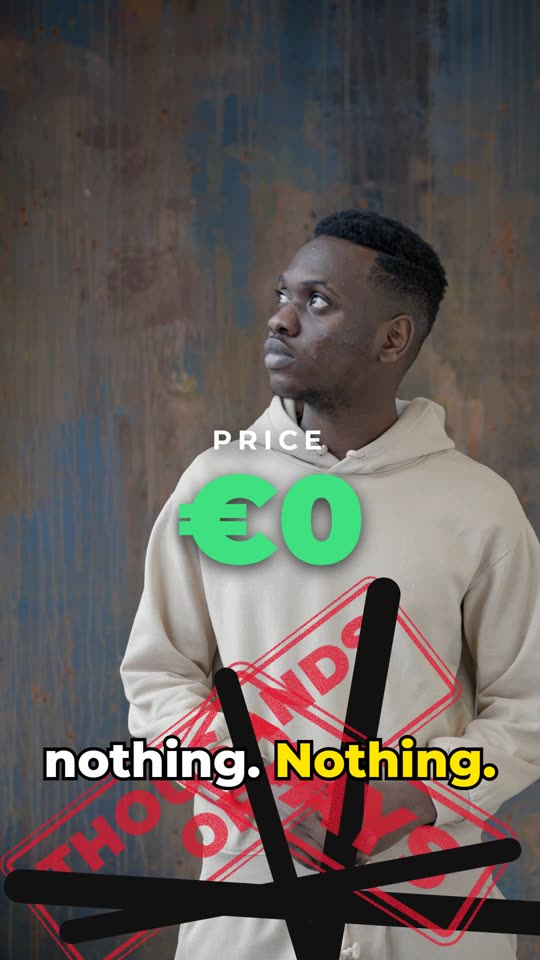
On "thousands of euros", stamp a big red label "THOUSANDS OF €" onto the screen, and on "days" a second stamp "DAYS". On "nothing", cross both stamps out and let them fall off the screen, while a price counter drops fast from €2,000 to €0.
13. A typed comment and a notification
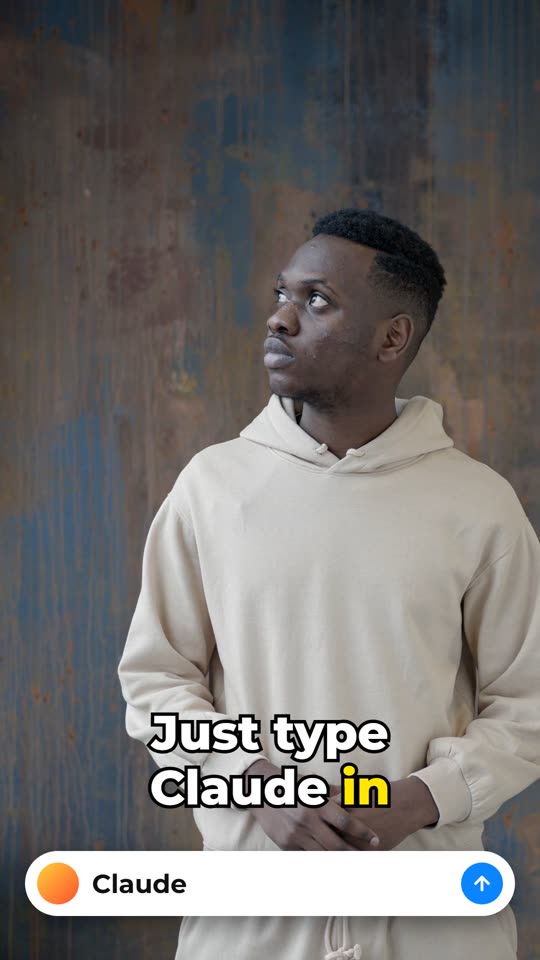
On "type Claude", show a comment box at the bottom of the screen where the word "Claude" types itself letter by letter, then a phone notification slides in from the top: "New message: here's your free guide".
14. Revealed as a hologram
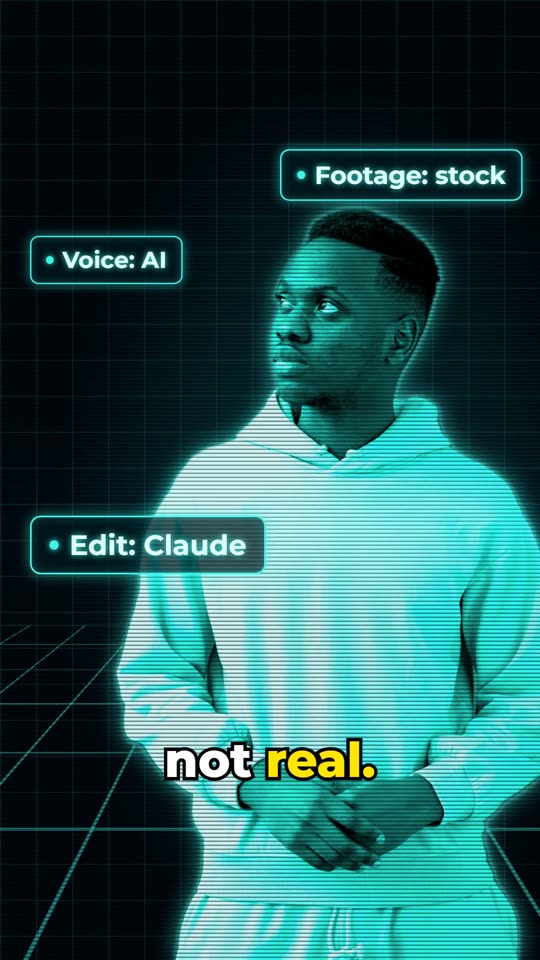
On "not real", turn the person into a hologram: a line of light sweeps down the frame and leaves them in turquoise tones with moving scan lines, glowing edges and a slight flicker, against a dark grid. Pop three tags up around them: "Voice: AI", "Footage: stock", "Edit: Claude".
15. Follower counter, stamp and a Follow button
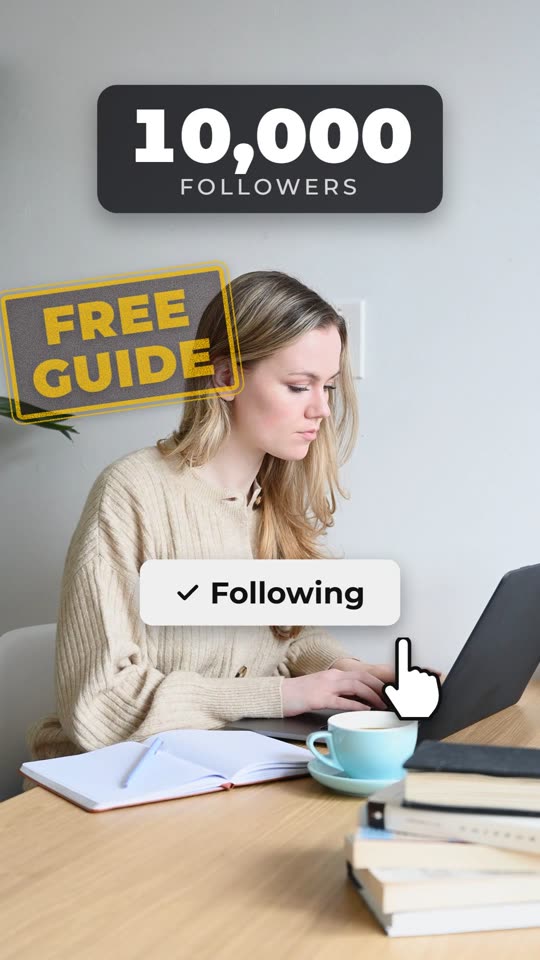
On "Follow", show a follower counter racing up to 10,000, a gold stamp "FREE GUIDE", and a Follow button that a hand cursor presses, after which it turns into "Following".
16. Rewind to the start, tape style
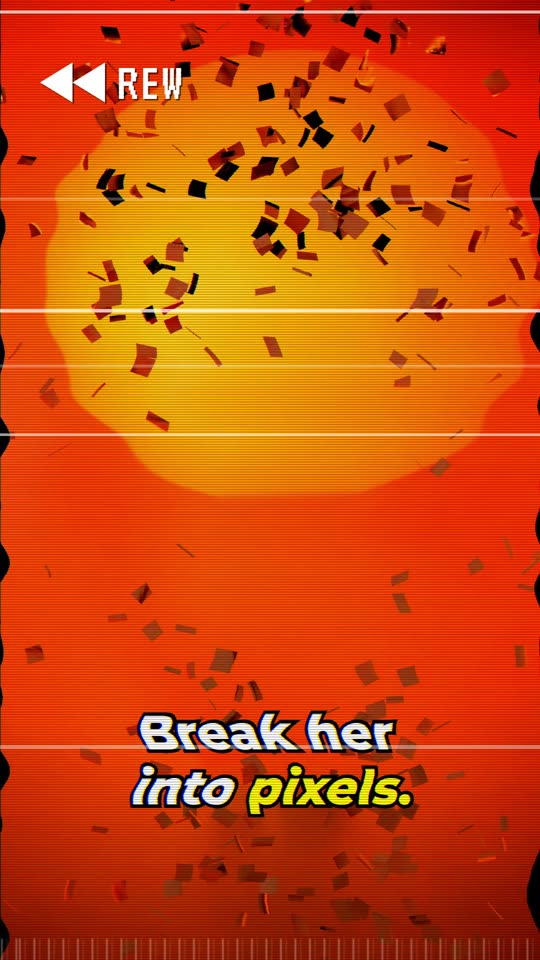
At the very end, rewind the whole video back to the first frame in about a second and a half, in the style of an old video tape: fast backwards, horizontal glitch lines, a slight colour wobble and a "◀◀" sign, so the video loops cleanly.
17. A sound for every effect
Give every effect its own sound, landing on the exact frame where the effect happens: for example a whoosh and a thud for the title, breaking glass for the shatter, a deep boom for the blackout, heavy footsteps for the giant, typing clicks for the comment, a cash-register sound for the money counter, a tape rewind for the ending. Choose fitting sounds for the other effects too. Use sounds you are allowed to publish without attribution, such as Remotion's @remotion/sfx, and tell me where each one came from. Keep the voice clearly on top, and set the final loudness to about −14 LUFS, the usual level for social media.
Claude placed 53 sounds in our reel. It took most of them from Kenney's free game-sound packs and a few from Remotion's sound set, all public domain, and made the tape rewind from our own voice track played backwards. It refused Remotion's meme sounds, because Remotion itself says they aren't under a free licence, and it saved a list of every sound and its source. Keep that list with your video. The finished mix measured −14.1 LUFS on our own check.
If you generate sounds with a service such as ElevenLabs instead, check your plan: content made on the free plan can't be used commercially and must credit ElevenLabs when published.
When something isn't right, say so like you would to an editor
Our captions showed "nothing. Nothing." near the end, although the voice says it once: the transcription had invented a second word. We didn't touch any file. We sent one sentence:
 Before
 After
AfterOne caption is wrong: near "Here it costs nothing" it shows "nothing. Nothing.", but I only say "nothing" once. Fix that caption.
Beyond effects: voiceover, cutting scenes and music
Effects are the fun part. The everyday work is narration, cutting shots and music, and Claude does that the same way: you say it in a sentence. We tested these prompts on a second, small project: five silent clips and a text file with five sentences, nobody on camera speaking.
A voiceover from your script
If you'd rather not talk on camera, or you have footage without sound, write the narration in a text file and let Claude make the voice. We used ElevenLabs, a service that turns text into a natural voice. You need an account and an API key, a password-like code that lets a program use your account. Put the key in a file called .env in the folder, as ELEVENLABS_API_KEY= followed by the key, and never paste it into the chat. Publishing the voice commercially needs a paid ElevenLabs plan.
script.txt has my voiceover, one sentence per line. Make it with ElevenLabs: my API key is in .env as ELEVENLABS_API_KEY. Read it from there, and never print it or copy it anywhere else. Pick a calm, clear English voice and tell me which one you chose.

Then build a vertical video with Remotion, 1080×1920 at 30 frames per second. If this folder has no Remotion project yet, set one up and add Remotion's official Agent Skills (npx skills add remotion-dev/skills). Use the clips in this folder in file-name order, one clip per sentence, each clip cut to the length of its sentence plus a short breath. Add captions: two to four words at a time, big and bold, in the lower third, with the spoken word highlighted in yellow. Show me a table of every word with its time, and render narrated-v1.mp4.
.env.Cutting scenes by content
The base prompt only removes pauses. To cut a whole sentence, move shots around or trim them, name the sentence or the shot:
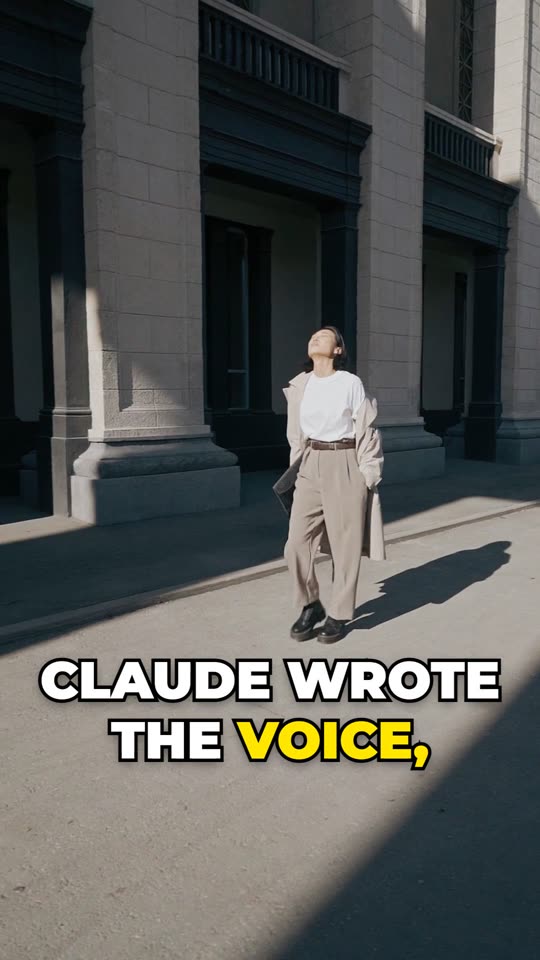 Before the swap
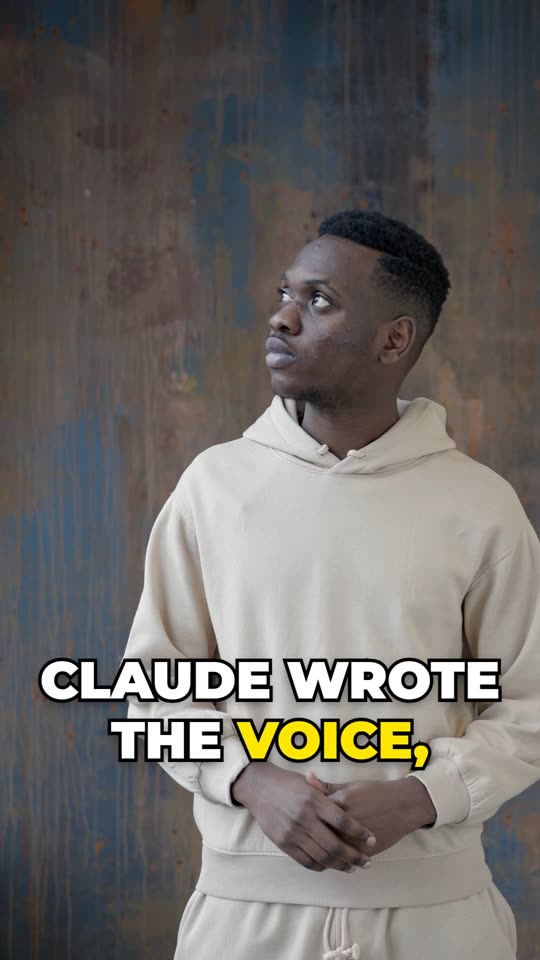 After the swap
Four changes to the shots: 1. Cut out the sentence "Want two shots swapped? One more." completely, together with its shot, and close the gap. 2. Swap the pictures of the second and third shots. Keep the voice in its order, and fit each picture to the sentence it now sits under. 3. The first shot starts on a dull moment: start its picture one second later. 4. Between every two shots, add a quick whip-pan transition of about a quarter of a second, and fade the last shot out through black. Keep the captions in sync, and render narrated-v2.mp4.
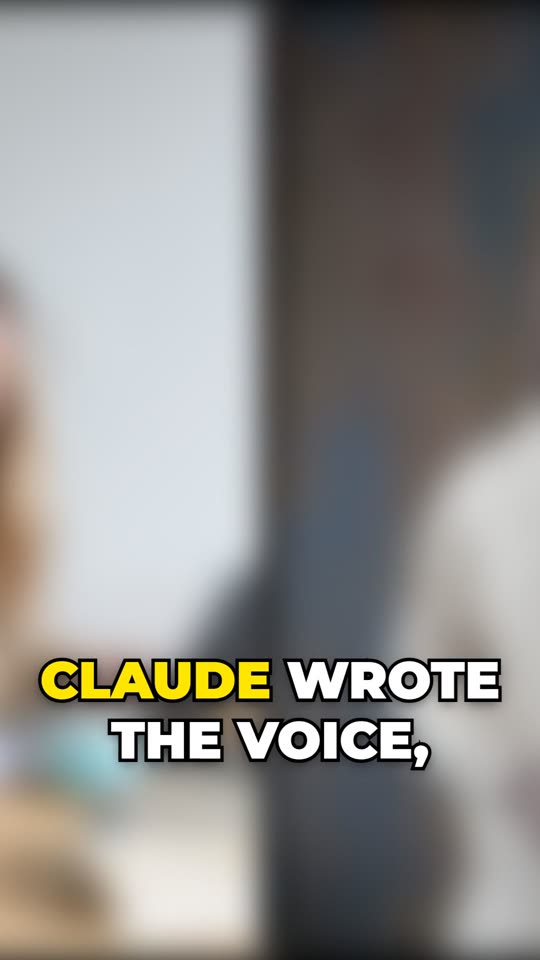
Between every two shots, add a quick whip-pan transition of about a quarter of a second, and fade the last shot out through black.
Changing one sentence of the voiceover, and adding music
Change the last sentence of the voiceover to "No timeline. No editing program. Just a conversation." Make only that sentence again, with the same voice, and keep everything else as it is.

Then: Put music.mp3 under the voice at a low level. It gets quieter while the voice speaks, fades in at the start and out at the end, and loops if it is shorter than the video. Set the final loudness to about −14 LUFS.
Claude made only the one new sentence again, so the rest of the voice stayed exactly as it was. It turned the music down while the voice speaks and up in the pauses, and measured the finished mix at −14.1 LUFS; our own check agreed. Use music you have the rights to: your own, a licensed track, or a public-domain one. Ours was a 22-second loop made with ElevenLabs' sound generator on a paid plan.
Step 4: Ask Claude to check it like an editor
This prompt closes the job. Claude goes through its own work frame by frame around every effect, fixes what it finds, and hands over the final file with a report.
Before you hand it over, watch the whole video like a professional editor. Take screenshots of the frames around every effect and look at them. Check: does each effect land on its word; are the captions in sync with the voice and never hidden behind an effect; is any word cut off; are there black, frozen or glitched frames that should not be there; does the person's cut-out flicker or leave a halo; is the sound too quiet, too loud or clipping. Fix everything you find, render final.mp4, and give me a table: effect, word, time, what you checked, what you fixed.
It's worth it. In our run the check found and fixed problems we had missed ourselves:
| What it found | What it did |
|---|---|
| A light grey halo around the man in all three worlds | Cleaned the cut-out edges for those shots |
| A light band down the middle of the empty background behind the pixels | Rebuilt that background |
| The clothes rack had gaps behind the giant | Restored the shelf and posts |
| Four caption words lit up early, during the breath before them | Made them light up when they are spoken |
| The €0 price, the comment box and the notification vanished in a single frame | Made them fade or slide away |
| The hand cursor covered the word "Following" | Moved the hand off the button after the click |
It also listed what it couldn't fix: a faint light edge on the man against the bright neon city, part of the rack's top bar that his raised arms hide in every frame, and a shadow that drifts slightly during the freeze. And it said plainly that it can't listen: the sound was measured, not heard. Watch and listen to the final file yourself before you post it.
Where it goes wrong, and what to do about it
All of these happened in our own run.
- The cut-out is the weak spot. In a close-up of a woman wearing a headset, the cut-out tool lost her head and kept only her shirt, and sleeves came out half-transparent. Full-body shots against a plain wall came out clean. Effects that move the person (stepping out of the frame, other worlds, the giant, pixels, the hologram) work best on shots where the whole person is visible against a plain background.
- Transcription invents words. Whisper heard "nothing" twice where the voice said it once. Read the word table Claude shows you after the first step, and correct it in one sentence, as we did above. Effects tied to a wrong word land in the wrong place.
- Phone and stitched videos drift. The frame timing in our raw file drifted by up to 74 milliseconds, enough to put the cut-out two frames away from the person. Claude noticed, made an evenly timed copy and left the original untouched.
- Things fail mid-job, and Claude retries. One render failed when a temporary folder disappeared, and one website refused Claude's downloader. Both times it found another way. If a session is interrupted, tell it to continue where it stopped.
- API keys can be limited. Our ElevenLabs key was allowed to make speech but not to list voices or make music. Claude worked around the first by picking a standard voice by its ID; for music we used the sound generator instead. If a service answers "missing permission", check what your key is allowed to do in that service's settings.
- Every effect after a freeze moves. The freeze adds 1.5 seconds, so every word after it starts later. Claude updates the table itself, but name words by number from then on.
- Usage limits. Claude Code uses the same limit as your chat. A full seventeen-effect reel is a long session and uses a large share of it; a few effects use much less.
- Licences. Remotion needs a paid licence for companies of 4 or more people. Stock footage and music have their own terms; Pexels lets you edit freely but forbids showing identifiable people in a bad light or implying they endorse you.
Start with the base prompt, then ask for one effect, a few, or all seventeen, and show us in the community what you made.
Sources
- brainai.co.ilBrain AI by Eden Bibas: the guide that inspired this one (Hebrew), 1 October 2026
- claude.comClaude plans and pricing
- code.claude.comClaude Code in the desktop app
- code.claude.comClaude Code: choosing the model
- remotion.devRemotion Agent Skills
- remotion.devRemotion: transcribing with Whisper.cpp
- remotion.devRemotion sound effects
- remotion.proRemotion licence and pricing
- pexels.comPexels licence