You ask Copilot for a draft, then spend the next part of the morning finding the right file, moving the text into Word, rebuilding a slide and chasing the action from yesterday’s meeting. Microsoft’s latest announcements address more of that work between the question and the finished result.
On 25 September 2026, Microsoft announced a new Copilot experience built around Home, Code and Autopilot. Its 9 October Office update brings document editing and collaboration into Copilot, while its October Notebooks update extends the ways a project’s sources can become useful outputs. Together, these changes point toward a Copilot that helps carry work forward across files, people and tasks.
This is a roundup for people who use Microsoft 365 at work. We’ll follow a fictional customer-onboarding project: collecting its background, preparing a team update, discussing the handover and keeping track of what happens next. The examples below are suggestions for using the capabilities, rather than results from our own Copilot test. The screenshots are Microsoft’s published product examples.
A new home for Copilot and your Office files
The first change is where the work happens. Microsoft’s new Home brings Chat and Cowork into a common starting point. Chat is for a conversation you steer as you go. Cowork is for a task you delegate with a description of the result you want. Home is intended to help you reopen work, review activity and find a useful next action. Microsoft’s announcement explains the distinction.
Office in Copilot then gives that conversation a file you can keep working on. Copilot can create a Word document, Excel workbook or PowerPoint presentation and open it beside your chat. You can ask for a change or edit directly with familiar Office controls. Colleagues can comment and coauthor the same file; it can also be opened in the standalone Office app. Microsoft says the files stay in OneDrive with their sharing permissions and version history.
For our onboarding project, that means the customer brief can remain a working document while the team checks it. You might ask for a clearer opening, correct a deadline yourself, then bring in the person responsible for delivery. There is less need to treat every AI response as a separate piece of text to copy into another document.
Create a Word brief from the onboarding notes I have selected. Explain the customer’s goal, agreed scope, responsibilities and unresolved questions. Flag missing information rather than filling it in. Then help me revise the brief for the delivery team.
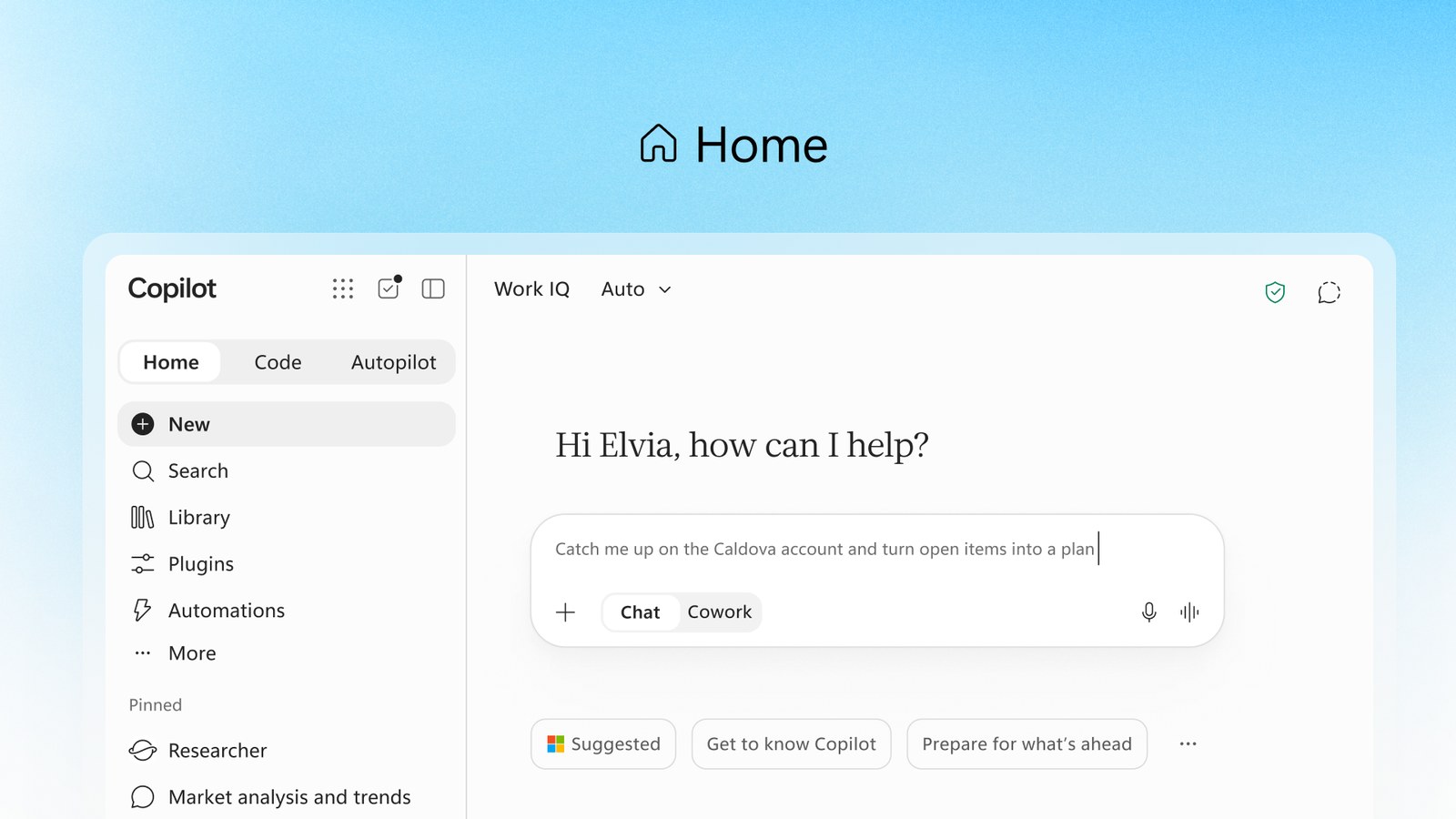
Availability: The Office announcement dated 9 October says it is rolling out to Frontier customers in Chat and Cowork. Frontier is Microsoft’s early-access program. A new announcement does not mean the feature is already enabled in every work account.
Notebooks that help move a project forward
A project usually has more than a single document: an email thread, a meeting, a brief, notes and a slide deck. Copilot Notebooks brings selected references into a workspace for that project. The October changes expand what you can do there, including creating and editing Office files, producing interactive reports and exporting a PDF through chat. Microsoft’s 9 October update describes these capabilities and their rollout status.
You can keep a request focused on the notebook’s references or choose a broader “Work and web” context. That choice matters. If the question is what your team has actually agreed, keep it tied to the project’s sources. If you want outside context about the customer’s industry, use the broader scope and check where the answer comes from. Microsoft documents both scope choices.
In our example, the notebook holds the onboarding brief and relevant meeting notes. The useful request is a handover summary that distinguishes commitments from unresolved questions. The team can then use the same project context to develop a document or presentation.
Using this notebook’s references only, prepare a delivery-team handover. Separate agreed commitments, assumptions and open questions. Link each commitment to its source. Create a Word document we can review together.
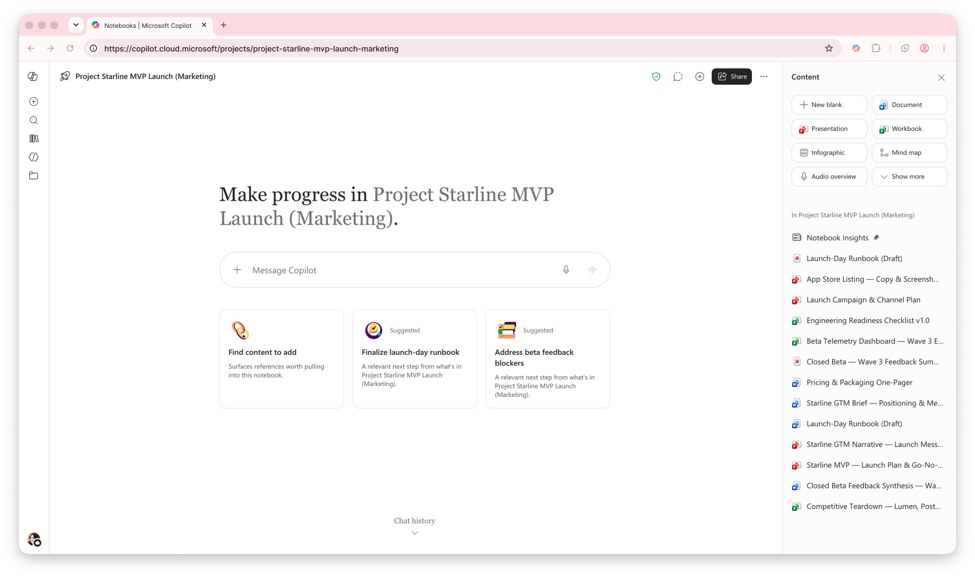
Availability: The October update separates features already generally available from those in Frontier. Expanded reference types such as plain-text and Markdown files are generally available. The refreshed interface, simple delegated work, Office editing, interactive reports and PDF creation are available in Frontier. Creating a notebook from a request and scheduling simple recurring tasks were described as arriving in the following weeks; don’t plan around those until you can see them in your account.
PowerPoint skills for repeatable presentation work
Preparing a presentation involves several jobs: getting the story right, matching the organisation’s visual identity and anticipating the questions. Microsoft’s September PowerPoint update introduces Skills for repeatable workflows and a Brand Kit that supplies approved templates and visual assets. The announcement explains how the two work together.
A Skill is a reusable set of instructions for a particular task. Instead of writing a fresh set of review prompts for every deck, you can choose a built-in Skill or create a personal one. Microsoft’s examples include Review Presentation for slide-by-slide feedback and Prepare for Questions for anticipating difficult questions. A Brand Kit gives Copilot the organisation’s approved starting material. It still takes a person to judge whether the presentation makes the right case.
For the onboarding update, use the kit your organisation provides, then ask for a review aimed at the delivery team. The question is whether the deck makes ownership and unresolved work clear enough for the handover. A polished slide can still contain a vague commitment.
Review this onboarding presentation for the delivery team. Check whether the agreed scope, responsible people, deadlines and unresolved questions are clear. Identify statements that need supporting evidence before we share the deck.
If that review becomes part of every handover, it is a candidate for a reusable Skill. Organisations can also distribute approved Skills, so teams can use a common review process. Microsoft documents personal Skills and administrator deployment.
Availability: Microsoft’s 14 September announcement says Brand Kit and Skills in PowerPoint are generally available with a Microsoft 365 Copilot licence. Further Brand Kit integration and background work appear in the September roundup with October rollout plans; those later additions should be checked separately.
Facilitator brings AI into the team meeting
Copilot’s development also includes AI assistance that the whole team can see. Facilitator is a shared agent in a Teams meeting. It takes editable notes, surfaces decisions and open questions, helps track an agenda and responds in the meeting chat. Microsoft distinguishes this shared interaction from an individual’s private Copilot conversation.
That changes how you use it. During the onboarding handover, a team lead can ask what has been agreed so far and what still needs an answer. Everyone sees the response and can correct it while the relevant people are present. The useful moment is before the meeting ends, when an unclear action can still be resolved.
@Facilitator, summarise the onboarding decisions agreed so far and list the open questions. For each action, show the responsible person and due date only if we explicitly agreed them. Flag anything we still need to confirm.
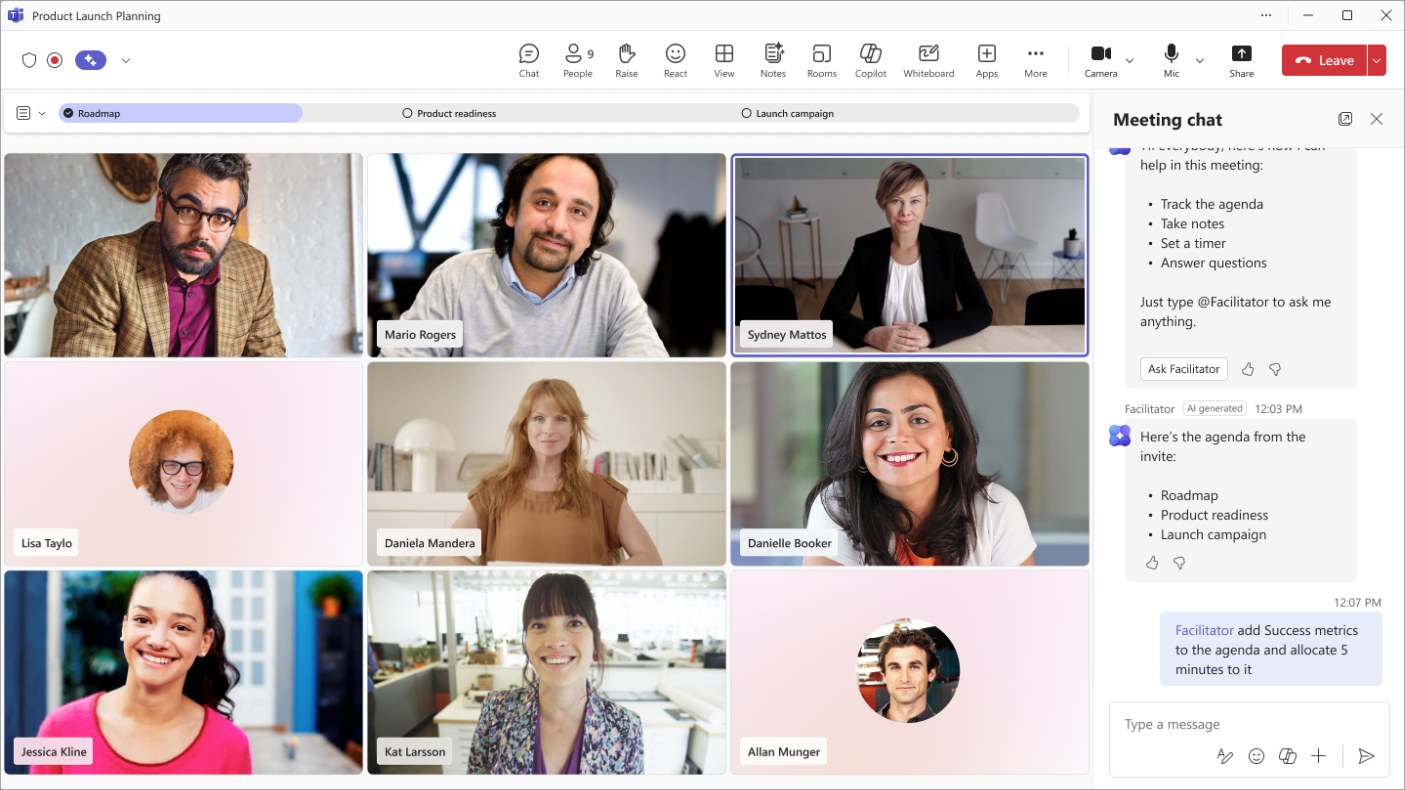
Afterwards, the team can find the notes in Recap and ask Facilitator to create a Word document from the discussion. Microsoft’s instructions say post-meeting questions require transcription to have been enabled before or during the meeting. If you need that continuation, make it part of your meeting setup.
Availability: Core Facilitator capabilities are generally available, while Planner task integration remains in public preview. Eligible Microsoft 365, Teams and Copilot licences and enabled Loop experiences are prerequisites. Microsoft also says AI notes cover the selected spoken language. For a team moving between German and English, check the record rather than assuming it includes the whole conversation.
Facilitator’s core features are already available; its Planner integration is the part to watch as it moves through preview. The inspiration for this section was Ron Gold’s Facilitator article on Let’s AI.
Code and Autopilot: building tools and delegating work
The September announcement also goes beyond working on files. Code lets someone describe a small app, dashboard, tracker or workflow in ordinary language and ask Copilot to build it. Microsoft says it uses the same underlying technology as GitHub Copilot, with a controlled environment for running the result. The announcement gives interactive dashboards and internal apps as examples.
For an onboarding team, a small tracker could show each customer’s stage, the next action and the person responsible. Start by describing the job the tool should help with and the data it may use. Then review whether the result fits the team’s actual process before connecting it to real customer information. A working-looking screen is the beginning of that check.
Build a small onboarding tracker using fictional sample data. Show each customer’s stage, responsible person, next action and due date. Let us filter by responsible person and identify overdue actions. Explain what would need approval before connecting real customer data.
Autopilot addresses a different job: work that continues over time. Microsoft describes an agent with its own identity, memory and workspace that can follow channels, carry out recurring work and resume a project later. Its published example is a supplier-review process involving preparation, meetings and follow-ups. These are Microsoft’s stated capabilities, rather than results from our own trial.
The practical idea is a bounded assignment such as preparing a weekly onboarding status report. Define which sources it should use, what counts as a blocker and which actions require someone’s approval. Drafting the update and sending it to a customer are different responsibilities; make that boundary part of the assignment.
Availability: On 25 September, Microsoft announced Code’s Frontier rollout and an expanded private preview for Autopilot. That announcement included plans for wider Code availability, but does not establish that your account has it today. Autopilot should be treated as a private-preview capability. Microsoft also distinguishes usage-based billing for delegated work in Cowork, Code and Autopilot from its user subscription: check the organisation’s access and spending policy before treating this work as included.
What you can use now—and what is still in preview
The common direction is continuity: a conversation can lead into an editable file, a project’s references can support its next deliverable, and assistance can extend across a team or recurring task. The release status still determines what you can actually try. Here is how the Microsoft sources distinguish availability, with the original announcement beside each item.
| Change | What Microsoft says | Where to start |
|---|---|---|
| Office inside Copilot | Rolling out to Frontier customers in Chat and Cowork. | Check whether your work account has the new file-editing experience. Office announcement |
| Expanded Notebooks | A mix of generally available, Frontier and forthcoming features. | Use the notebook capabilities present in your account; check each new output type separately. Notebooks update |
| PowerPoint Brand Kit and Skills | Generally available with a Microsoft 365 Copilot licence. | Open the Copilot pane in PowerPoint and look for available Skills and approved brand material. PowerPoint announcement |
| Facilitator | Core meeting capabilities generally available; Planner integration in public preview. | Check meeting eligibility, licences and the settings your organisation permits. Facilitator requirements |
| Code | Frontier rollout announced; wider availability was planned. | Confirm current access and the rules for running and sharing a tool. Code announcement |
| Autopilot | Expanded private preview announced. | Treat it as a preview to follow, unless your organisation has access. Autopilot announcement |
Choose one job that repeatedly slows your team down: a presentation review, an unclear meeting action or a handover assembled from several files. Try the relevant capability on material you are allowed to use, then judge the actual result. Is the source correct? Is the responsibility clear? Can a colleague continue the work in the same file? Those answers tell you more than the size of the feature list.
For employees and team leads, the useful skill is describing the outcome and deciding where human review belongs. These Copilot updates give that instruction more places to go.
Sources
- blogs.microsoft.comMicrosoft: the new Copilot with Home, Code and Autopilot, 25 September 2026
- techcommunity.microsoft.comMicrosoft: Office in the new Copilot app, 9 October 2026
- techcommunity.microsoft.comMicrosoft: Notebooks updates, 9 October 2026
- techcommunity.microsoft.comMicrosoft: Brand Kit and Skills in PowerPoint, 14 September 2026
- techcommunity.microsoft.comMicrosoft: September Copilot roundup, 30 September 2026
- support.microsoft.comMicrosoft Support: Facilitator in Teams meetings
- learn.microsoft.comMicrosoft Learn: Facilitator setup, availability and limitations
- letsai.co.ilLet’s AI: Ron Gold on Teams Facilitator, 8 October 2026; inspiration