What changed on 19 October
Two of the things Gemini Notebook makes from your sources (the PDFs, documents, web pages and YouTube links you put into a notebook) now come with a planning step. A Slide Deck is a presentation you can download as PowerPoint or PDF. A Video Overview is a short narrated video that explains your material. Google says the change came from users asking for "more creative control from start to finish" (Google).
Why it matters: changing a plan takes one sentence. Changing a finished deck used to mean making it again, and making a deck "can take several minutes" (Google help). You can still edit single slides afterwards, but Google's help page says that "sources are not taken into account during revisions", and the number of edits is limited. So the review step is the last point where your documents still steer the content.
How it works, in three steps
- Ask in the chat. "Make me some slides", or more specific, as in Google's video demo: "make an explainer video on running effective meetings for new managers". Notebook suggests a few focus topics from your sources. Pick one or type your own.
- Set the card and switch on review. Choose the format, language, length and visual style, and switch on "Review outline before final rendering" (for a video, the producer notes, meaning the scene-by-scene script). If your first message already says what you want, Notebook goes straight to this step.
- Read the plan, then click Proceed. In the Studio panel on the right, click Review. Type all your changes in one message, such as "Add an executive summary slide to the beginning" or "end video with 3 key takeaways", then Proceed. After that the outline is locked: "You will not be able to further refine your outline" (Google help).
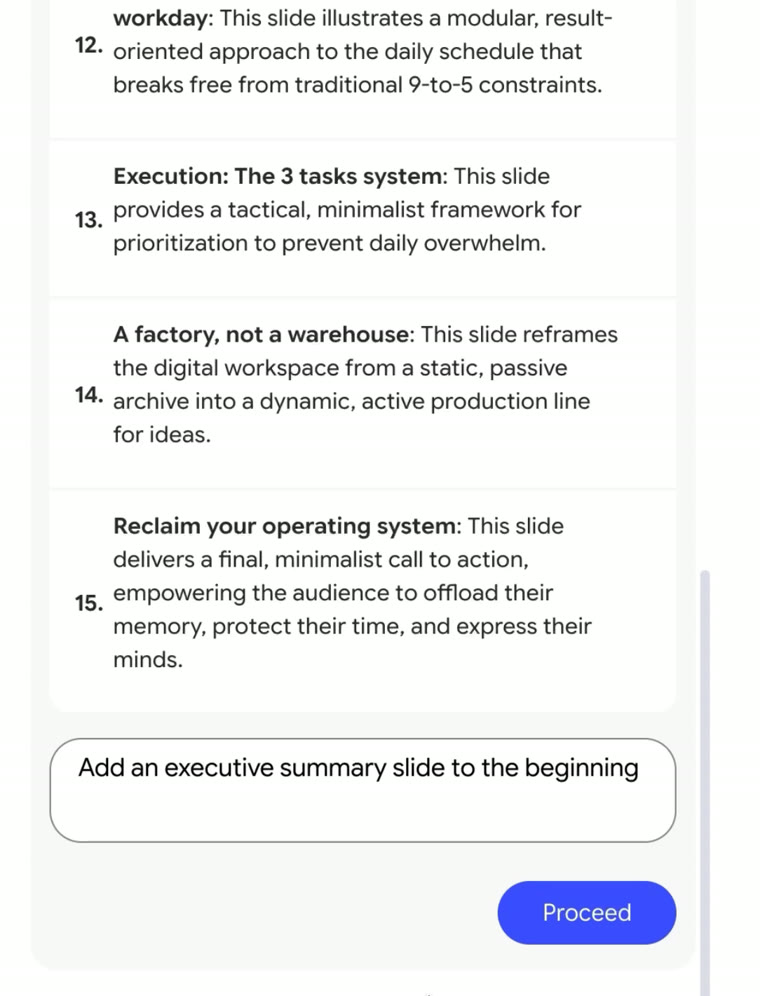
The same three steps for a video, in Google's second walkthrough (1 minute 16 seconds):
In a hurry? Skip the switch and Notebook makes the deck or video in one go, as before.
Who gets it: Google's pages disagree
Google's announcement says the feature is "rolling out globally to all Gemini Notebook users over the upcoming week", so by about 26 October (Google). Google's own help page for slides says: "This feature is only available for Google AI Ultra subscribers" (Google help, checked 21 October 2026). Digital Trends reports it as available to all Pro and Ultra subscribers now. Both demo accounts in Google's videos carry an Ultra badge.
The quick way to know: open a notebook, start a slide deck, and look for the review switch on the card. If it is not there, you do not have it yet. Google has not said how many of these you can make per day, which languages the review works in, or which model writes the plan.
What to do with it this week
- Make your next deck from documents you already have. Put the report, the meeting notes and the client brief into one notebook, ask for slides with review on, and fix the order before it is built.
- Say who it is for in the first message. "Ten slides for the leadership team, decision on slide 2" gives a better first plan than "make slides".
- Check every slide before you present it. Google's own warning: decks "may contain visual or factual inaccuracies" (Google help). The review step fixes the structure, not the facts.
- Before you upload company documents, ask whoever owns data protection at your company whether your Google account (personal or Workspace) is approved for them.
Sources
- blog.googleGoogle: How to shape your slides and videos with Gemini Notebook, 19 October 2026 (both videos)
- support.google.comGemini Notebook Help: Generate Slide Decks in Gemini Notebook
- blog.googleGoogle: NotebookLM is now Gemini Notebook, 16 July 2026
- digitaltrends.comDigital Trends: Gemini Notebook now lets you review slides and videos before generating them